Scheduled channels
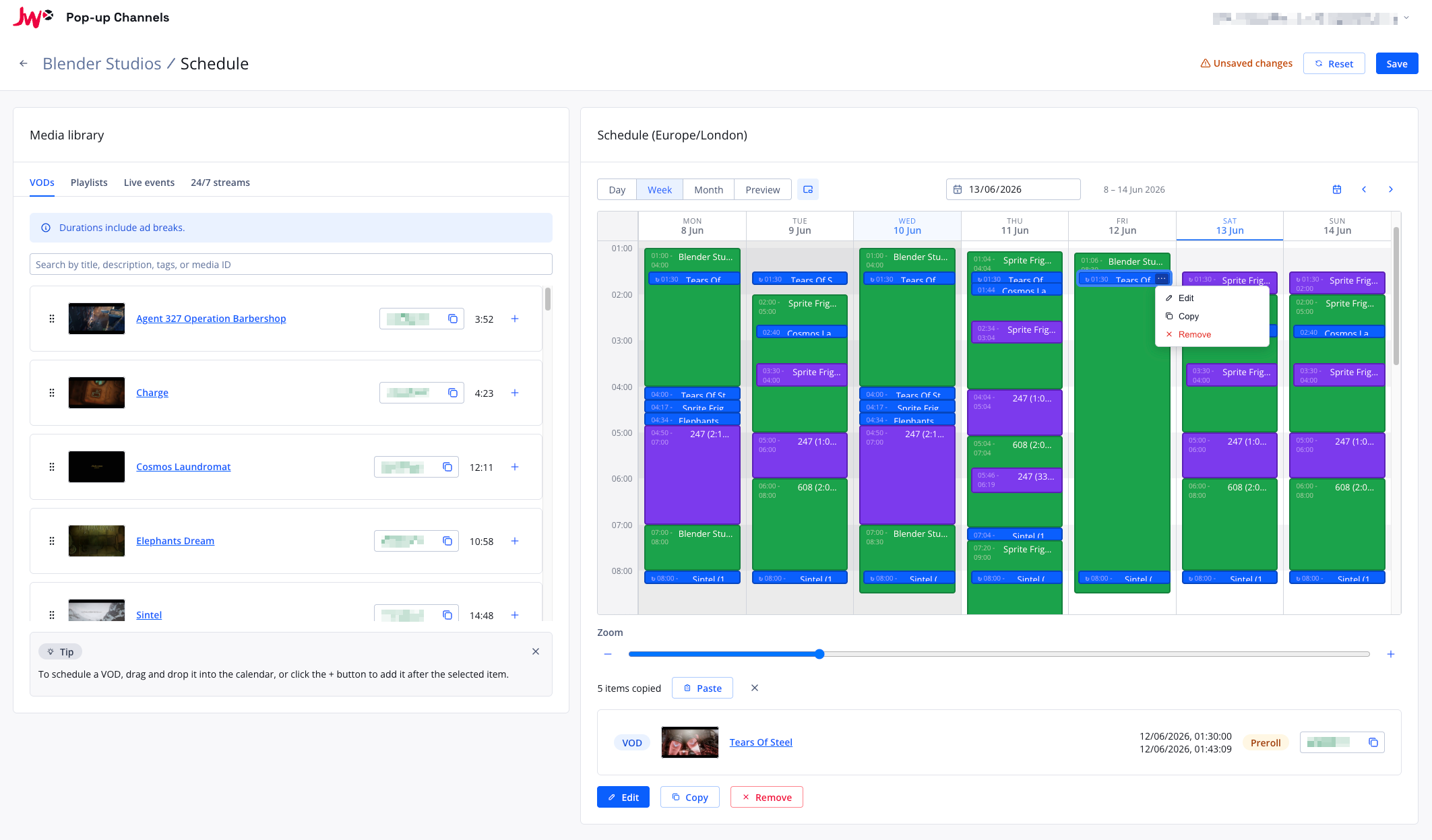
The scheduled channel mode allows you to schedule content from your JWX property to play at specific times using a drag-and-drop interface.
Creating a scheduled channel
See Creating a scheduled channel.
Filler playlist
For scheduled channels, you can configure a filler playlist: a JWX playlist that is looped to fill any gaps between your scheduled content. When nothing is scheduled, the filler playlist plays instead of the channel slate.
The filler playlist is configured on the channel details page:
- Expand the "Filler playlist" section
- Under "Filler playlist", select the JWX playlist to use as filler content
- Optionally, enable "Randomise filler order" to shuffle the playback order of the filler playlist
- Optionally, enable "Allow filler VODs to be cut short" so the last filler VOD before your scheduled content can be cut short to fill the gap, instead of showing the slate. Filler VODs that fit the gap whole are always preferred, and a remainder shorter than 30 seconds still shows the slate.
- If the channel has SSAI enabled, expand the nested "SSAI" section to disable ad breaks for filler VODs, or to override the channel's preroll setting for filler VODs. See Per-item ad break controls.
- Click "Save"
In the channel's EPG, items generated by the filler playlist have a source of filler.
Updating the schedule
You can make changes to the schedule using the interface at https://app.fast.jwp.services.
For details on logging into the Pop-up Channels front-end, please see Accounts.
Once you are logged in, you can select your channel from the channels list, and then navigate to "Edit schedule".
Media library
On the left side of the scheduler, you will see a media library with the following tabs:
- VODs - a list of VODs from your JWX property. You can use the search bar to find a specific VOD.
- Playlists - a list of playlists from your JWX property. Playlists can be scheduled as blocks of content.
- Series - a list of series from your JWX property, if your account has access to series. A series, or a single season of one, can be scheduled as a block of content, like a playlist. See Scheduling a series
- If live mixing is enabled:
- Live events - a list of live events from your JWX property
- 24/7 streams - a list of always-on live streams from your JWX property
Scheduling items
To schedule a VOD, drag and drop it from the media library into the calendar on the right at the time you want the VOD to play, or click the + button next to it.
To schedule a playlist as a block, drag and drop it from the "Playlists" tab into the calendar. When editing a playlist block, you can configure:
- Match playlist length - size the block to play the playlist exactly once. See Matching the playlist length
- Start index - the position in the playlist to start playback from
- Start index increment - for recurring playlist blocks, how many items further into the playlist each occurrence starts. See Playing episodes in order
- Random order - shuffle the playback order of the playlist
- Loop - loop the playlist when it reaches the end
- Cut final VOD short - allow the last VOD in the block to be truncated to fit the block end; when disabled, a final VOD that would overrun the block is skipped
- Item limit - limit the number of items to play from the playlist
- If the channel has SSAI enabled, Insert ad breaks and Preroll controls let you disable ad breaks or override the channel-level preroll for VODs in this playlist block. See Per-item ad break controls.
The "Shuffle" option in JWX dynamic playlists should not be used, as it can cause unexpected behaviour. In order to randomise the order of a playlist used in Pop-up Channels, please use the "Random order" option when scheduling the playlist on the channel.
To make precise changes to the start time of a VOD, click the VOD in the calendar and click "Edit". A modal will be shown that will allow you to set the start time and date. When the channel has SSAI enabled, this modal also offers per-VOD Insert ad breaks and Preroll overrides — see Per-item ad break controls.
If you have live mixing enabled, to schedule a live event, navigate to the "Live events" tab and click the + button next to the event you would like to add to the schedule. For 24/7 streams, drag them into the schedule and use the handles to set the start and end time.
To remove an item from the schedule, click the item in the calendar and then click "Delete".
Once you are happy with your schedule, click "Save" to save your changes. This will update your channel to use the schedule you have created.
The schedule will be shown in the timezone configured for your user. See timezones for details.
Recurring items
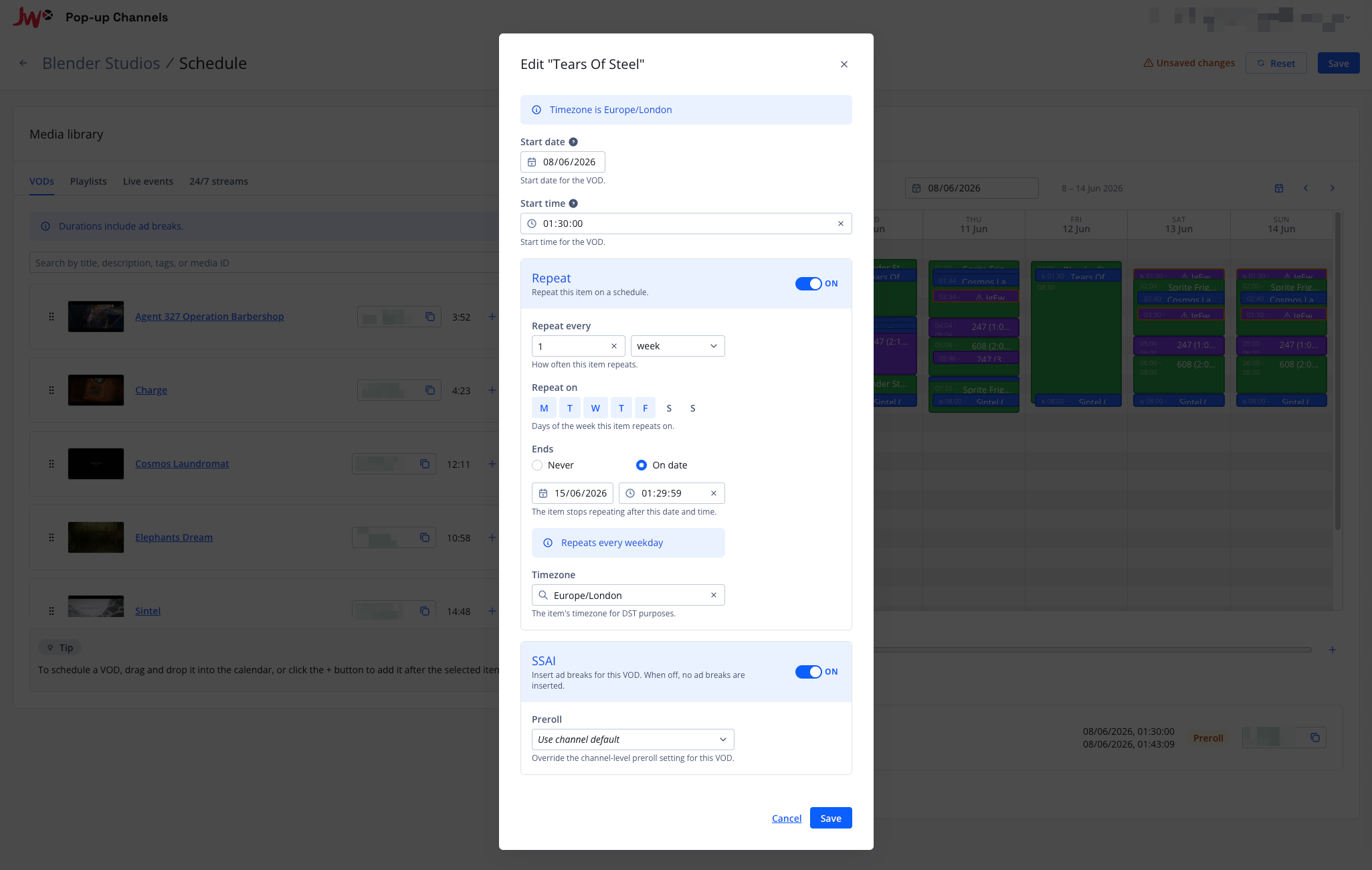
VODs, 24/7 streams and playlist blocks can be set to repeat on a schedule. To make an item recurring, open its edit modal and enable the "Repeat" toggle, then configure:
- Repeat every - how often the item repeats (for example daily, weekly or monthly)
- Repeat on - for weekly recurrence, the days of the week the item repeats on
- Repeat by - for monthly recurrence, how the day in the month is chosen
- Ends - when the series stops repeating: "Never", or "On" a specific date
- Timezone - the timezone the recurrence is evaluated in, so occurrences keep their local time across daylight saving changes
A preview of the recurrence rule is shown while you edit it.
When you edit or delete a recurring item, you will be asked which occurrences the change should apply to:
- This occurrence - only the occurrence you selected
- This and following occurrences - the selected occurrence and every later one
- All occurrences - the entire series
Matching the playlist length
Turn on Match playlist length to make a playlist block exactly as long as one play through the playlist. The block's end time is then calculated for you instead of being set by hand, and it includes ad breaks when the channel has SSAI enabled. Start index, Item limit and Random order are taken into account. Loop and Cut final VOD short don't apply and are hidden.
The length is kept up to date as the playlist changes, so adding or removing videos in JWX lengthens or shortens the block.
Playing episodes in order
A recurring playlist block can step through a playlist one occurrence at a time, for example to play the next episode each day. Set Start index increment to the number of items each occurrence should move on by: with an increment of 1 and the block sized to fit a single episode, the first occurrence plays item 0, the next plays item 1, and so on. Once the end of the playlist is reached, it continues from the beginning.
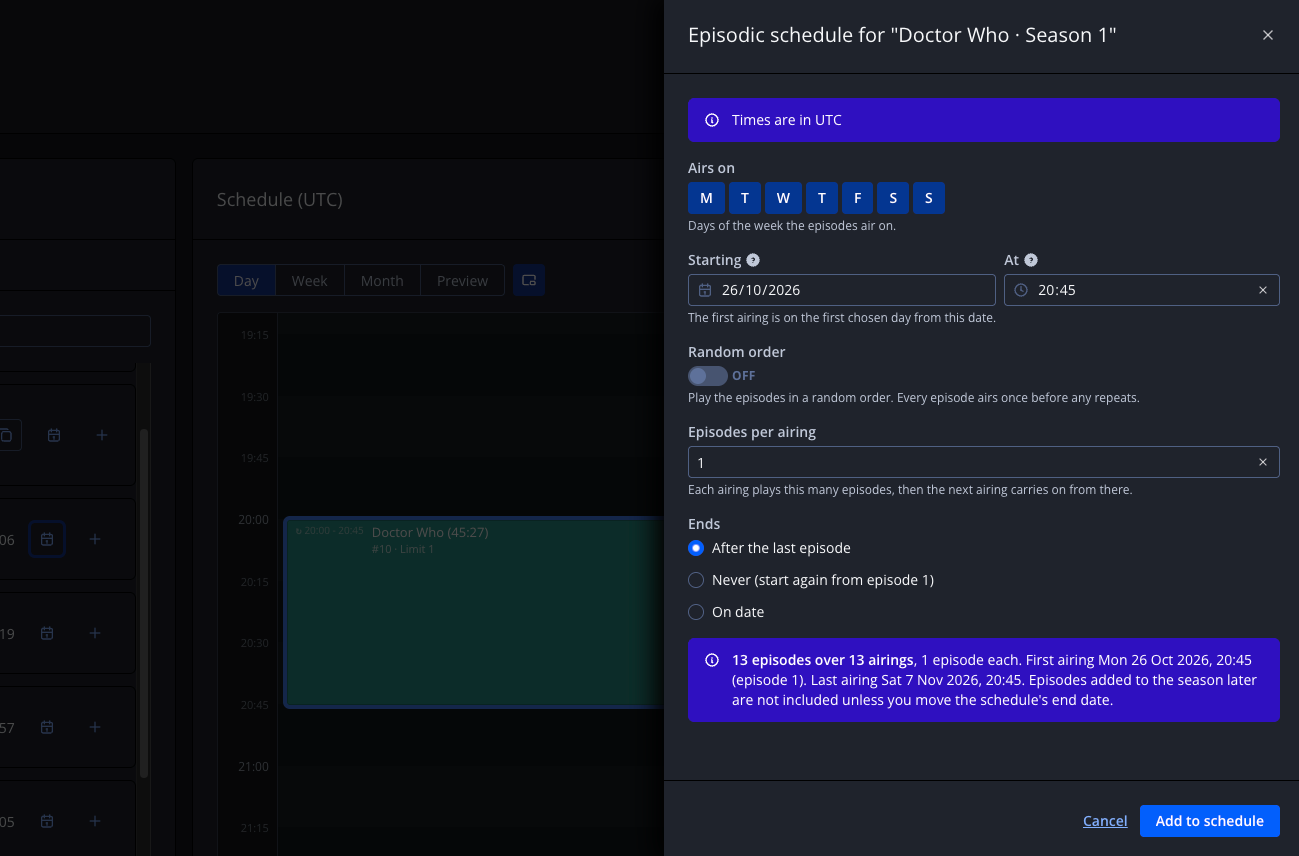
The quickest way to set this up is an Episodic schedule. In the "Playlists" or "Series" tab, click the calendar button next to a playlist, series or season, then choose:
- Airs on - the days of the week the episodes air on
- Starting and At - the date the schedule starts from, and the time each airing starts
- Episodes per airing - how many episodes each airing plays; the next airing carries on from there
- Random order - play the episodes in a random order. The whole schedule uses one random order, so every episode airs once before any repeats
- Ends - "After the last episode" to stop repeating once every episode has aired, "Never" to start again from the first episode, or "On date" to stop after the last airing on a date you choose. If that date is after the last episode airs, the schedule starts again from the first episode until then
The first airing plays the first episode in the playlist (or, with random order, the first in its random order). This adds a recurring playlist block sized to the episodes each airing plays, with Start index increment and Item limit set to the number of episodes per airing. You can edit it afterwards like any other recurring item. With "After the last episode", the schedule's end date is set to the airing that plays the last episode, so episodes added to the playlist later are only included if you move the end date.
If Random order is also enabled, every occurrence uses the same random order, so the episodes play in a shuffled order without repeating any item until the whole playlist has played.
Scheduling a series
If your account has access to JWX series, the "Series" tab lists the series on your property. Drag a series into the calendar, or click the + button next to it, to schedule the whole series. To schedule a single season, click the arrow next to the series to show its seasons, then drag the season into the calendar or click its + button.
A series block works like a playlist block: its episodes play in season then episode order, and it has the same options, including Match series length (or Match season length), Start index, Random order and recurrence. Episodes added to the series in JWX are included automatically.
If an episode can't be played on the channel, for example because it has been deleted or is hosted differently from the channel's other VODs, its slot is left to the filler playlist or slate rather than moving the rest of the series, and a warning is shown on the channel.
Scheduler controls
The scheduler provides several controls to help you manage your schedule:
- View - switch between Day, Week, Month and Preview views. The Preview view shows the resolved schedule (the channel's EPG), including how recurring items and playlist blocks expand into individual occurrences.
- Zoom - use the zoom control to adjust the time scale of the calendar
- Allow overlaps - toggle whether schedule items can overlap each other
In the Day and Week views, a timeline next to the calendar shows what the channel will actually play, including filler, slate and ad breaks. Hover over a block in the timeline to see its details.
Selecting and managing items
Click on a scheduled item to select it. Selecting an item allows you to view details, make changes or remove it from the schedule.
Shift+click or drag on an empty area to select multiple items at once. Selected items can be moved together, copied to another day or removed.
Right-click an item, or click the "..." button on a selected item, to open a context menu with quick actions for that item.
For a playlist block, Set to playlist length turns on Match playlist length, and Fix length turns it off again, keeping the block's current end time.
Copy and paste
You can copy all selected items from one day and paste them to another day:
- Select the items you want to copy (or use Ctrl+A / Cmd+A to select all items on the current day)
- Press Ctrl+C / Cmd+C or click "Copy" to copy the selection
- Navigate to the target day
- Press Ctrl+V / Cmd+V or click "Paste" to paste the items at the same time of day
You can also right-click an empty area of the calendar to choose where the items are pasted:
- Paste here - paste the items so the earliest one starts at the time you clicked
- Paste at original time - paste the items at the same time of day as the originals, on the day you clicked
The spacing between the copied items is kept. Pasted items are standalone, so copying an occurrence of a recurring item pastes a single item that doesn't repeat. Live events are pasted as VOD replays, and only when pasted later than the original event.
A paste is blocked if it would overlap existing items in a way that isn't allowed, for example a VOD on top of another VOD while Allow overlaps is off.
Keyboard shortcuts
| Shortcut | Action |
|---|---|
| Ctrl+C / Cmd+C | Copy selected items |
| Ctrl+V / Cmd+V | Paste copied items to the current day |
| Ctrl+A / Cmd+A | Select all items on the current day |
| Delete / Backspace | Remove selected item(s) |
| Enter | Open the edit modal for the selected item |
| Left arrow | Navigate to the previous day |
| Right arrow | Navigate to the next day |
| Up arrow | Move selection to the previous item |
| Down arrow | Move selection to the next item |