Video
A video configuration controls which video renditions are included in a channel's output. You can use it to limit the resolutions and codecs delivered, or to create an audio-only channel.
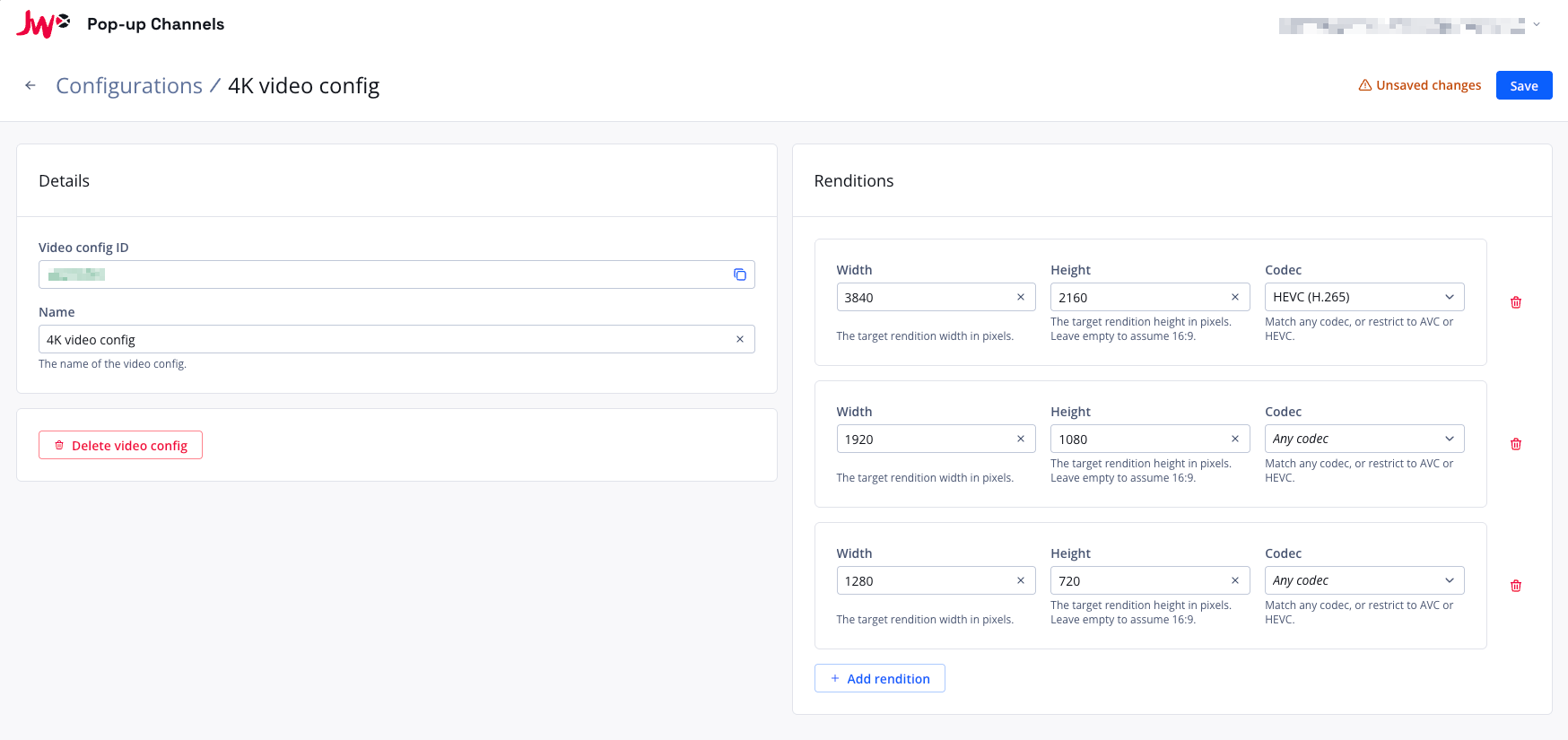
Setting up a video configuration
To control the video output of a channel, you will first need to create a video configuration.
- In the Pop-up Channels front-end, click your email address in the top right corner, then "Configurations"
- Next to "Video", click "Create video config"
- Under "Name", enter a name for your video configuration
- Under "Renditions", click "Add rendition" for each rendition you want to include, and set:
- Width - the target rendition width in pixels
- Height - the target rendition height in pixels (optional; leave empty to assume a 16:9 aspect ratio relative to the width)
- Codec - restrict the rendition to AVC (H.264) or HEVC (H.265), or choose "Any codec" to match either
- Bandwidth - the declared peak bandwidth for the rendition, in bits per second (optional)
- Click "Save"
You can then select this video configuration when creating or updating a channel.
Renditions are matched against your source media by closest height, so the output uses the renditions on your VODs that most closely match those you configure.
Updating a video configuration
When a video configuration is associated with a running channel, you will not be able to make updates to it. You must stop all associated channels first.
Audio-only channels
To create an audio-only channel, create a video configuration with no renditions. When a channel uses a configuration with an empty rendition list, all video tracks are removed and the channel is packaged as audio-only.